
Navigation: Contacts Record
In some circumstances, you may wish to link contacts and have a specific lead contact. Lead contacts automatically go into the ‘Lead contact’ system group once another contact is linked to them - to find out how to do this, follow the steps below:
Linking Contacts
When linking contacts, you have two options:
Option 1: ‘Link contact to this contact’
Option 2: ‘Link this contact to a lead contact’
By using ‘Option 1’ the contact record you link to another contact will become the lead contact.
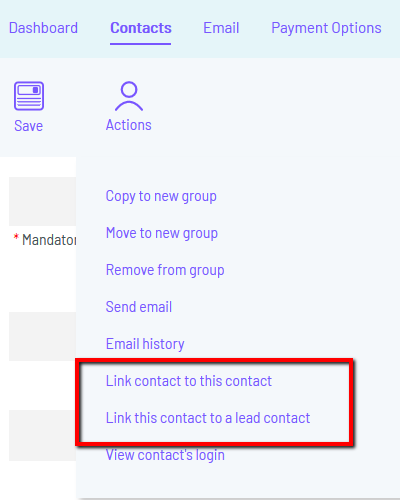
Link Contact to this Contact
Step 1: Go to the record of the contact you wish to have as the ‘Lead contact’. When in the record, hover over ‘Actions’ and select ‘Link contact to this contact’.
Step 2: You will then be taken to a screen where you will be asked to ‘Enter First name of contact to be linked’ – enter their first name. As you type the name, a list of contacts to be linked to will appear in a menu below. When selected click ‘Next’.
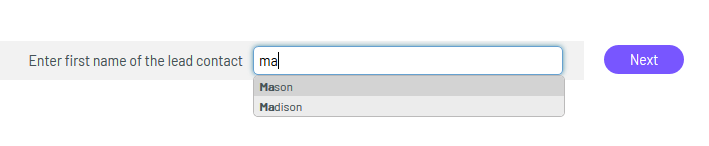
Step 3: Finally, select the email address of the contact to be linked to. Alternatively, you can create a new user.
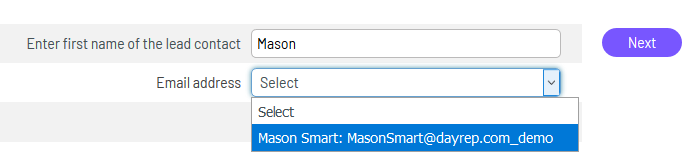
Step 4: Once you have selected an email address or added a new user, click ‘Next’. A pop-up will then display saying ‘Linked successfully’ – click ‘OK’.
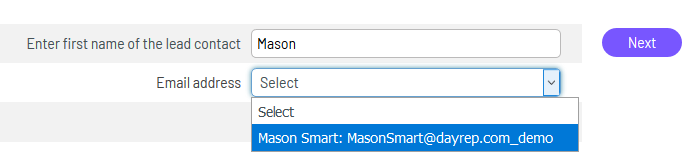
Once you have followed the steps above you will have successfully linked a contact to the lead contact. The lead contact will automatically go into the ‘Lead contacts’ system group.
Comments
0 comments
Please sign in to leave a comment.